Pulsar Edit: Difference between revisions
No edit summary |
|||
| (11 intermediate revisions by the same user not shown) | |||
| Line 1: | Line 1: | ||
== Description == | == Description == | ||
An all around NSIS language package for | An all around NSIS language package for[https://pulsar-edit.dev/ Pulsar | ||
=== Grammar === | === Grammar === | ||
Syntax highlighting of all commands in NSIS versions 2.46 & 3. | Syntax highlighting of all commands in NSIS versions 2.46 & 3.12 and their included plug-ins | ||
=== Completions === | === Completions === | ||
| Line 11: | Line 11: | ||
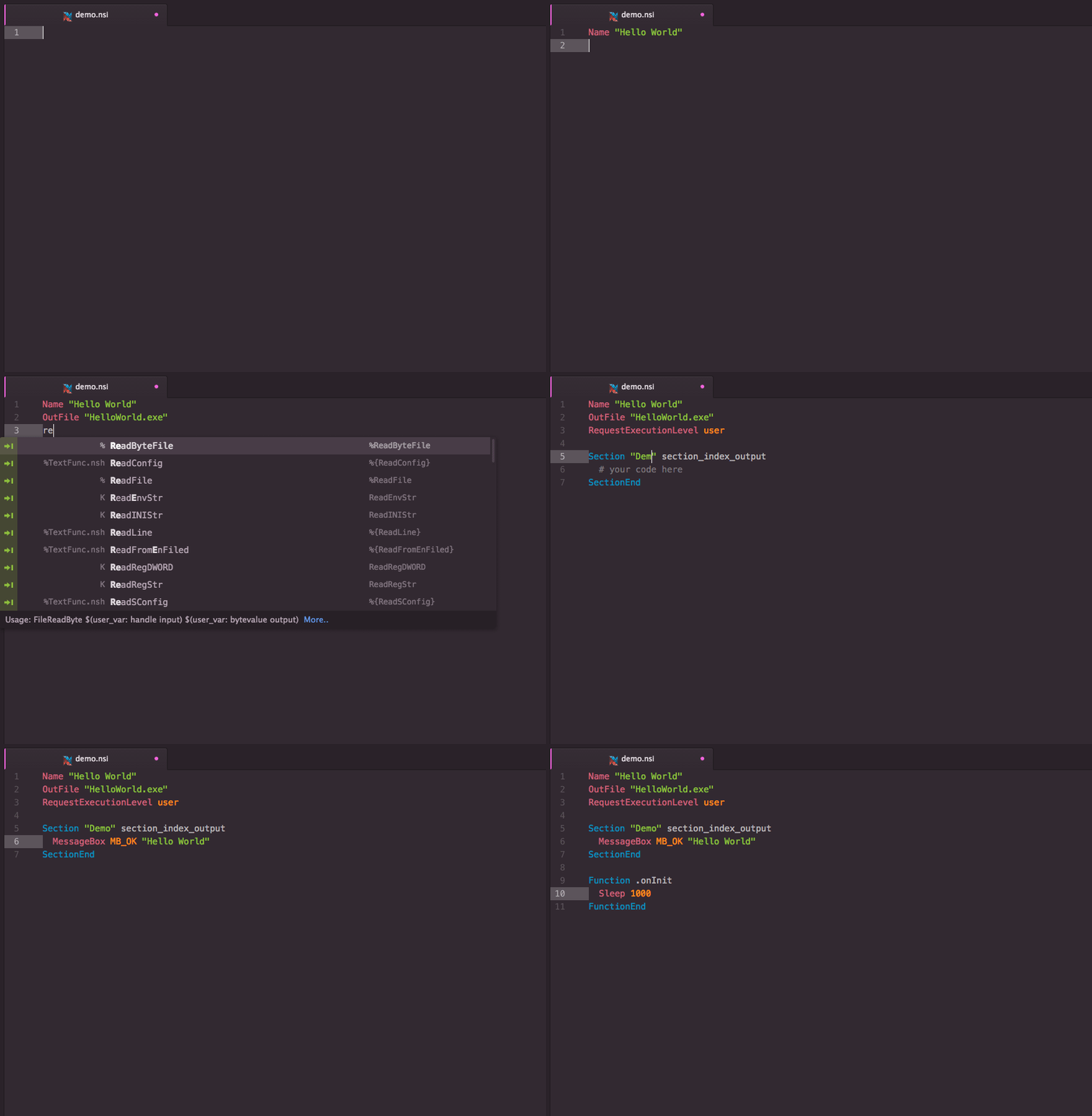
Tab-completions for syntax, useful snippets for quick scaffolding | Tab-completions for syntax, useful snippets for quick scaffolding | ||
https://raw. | https://raw.github.com/idleberg/atom-language-nsis/master/resources/screenshot.gif | ||
=== Code Formatting === | |||
The extensions has built-in code formatting using the <code>dent</code> formatter | |||
=== Extension Packages === | === Extension Packages === | ||
You can further extend [ | You can further extend [https://packages.pulsar-edit.dev/packages/search?q=nsis #nsis] support in Pulsar. | ||
* [ | * [https://packages.pulsar-edit.dev/packages/nsis-plugins 3rd party plug-ins] | ||
* [ | * [https://packages.pulsar-edit.dev/packages/language-nlf NSIS Language File] | ||
* [ | * [https://packages.pulsar-edit.dev/packages/language-nsl nsL Assembler] | ||
== Installation == | == Installation == | ||
=== | === Pulsar Package Manager (ppm) === | ||
Install package from <code> | Install package from <code>ppm install language-nsis</code> (or use the GUI) | ||
=== Git === | === Git === | ||
Change to the | Change to the Pulsar package directory and clone the repository: | ||
<code>git clone <nowiki>https://github.com/idleberg/atom-language-nsis.git language-nsis</nowiki></code> | <code>git clone <nowiki>https://github.com/idleberg/atom-language-nsis.git language-nsis</nowiki></code> | ||
| Line 55: | Line 59: | ||
=== Building === | === Building === | ||
There are | There are many ways to compile NSIS scripts in Pulsar. But before we go into detail, make sure makensis is in your PATH [http://superuser.com/a/284351/195953 PATH environmental variable]. | ||
As of v4.0.0 of this package, you can compile scripts without relying on third-party packages. To do so, select “NSIS: Save & Compile” from the command-palette or use the shortcut <kbd>Ctrl</kbd>+<kbd>Alt</kbd>+<kbd>M</kbd> (that's <kbd>Shift</kbd>+<kbd>Alt</kbd>+<kbd>M</kbd> on Windows.) | |||
==== Third-party packages ==== | |||
In addition to that, you can choose from the following build packages to compile NSIS: | |||
* [https://packages.pulsar-edit.dev/packages/build build] with build provider (e.g. [https://packages.pulsar-edit.dev/packages/build-makensis build-makensis]), supports [https://packages.pulsar-edit.dev/packages/linter linter] | |||
* [https://packages.pulsar-edit.dev/packages/script script] | |||
* [https://packages.pulsar-edit.dev/packages/atom-runner atom-runner] | |||
== Links == | == Links == | ||
* [https://github.com/idleberg/language-nsis GitHub]<br /> | * [https://github.com/idleberg/language-nsis GitHub]<br /> | ||
* [https://packages.pulsar-edit.dev/packages/language-nsis Pulsar Packages]<br /> | |||
[[Category:Syntax_Highlighting]] | [[Category:Syntax_Highlighting]] | ||
[[Category:Development Environments]] | [[Category:Development Environments]] | ||
Latest revision as of 21:55, 25 June 2026
Description
An all around NSIS language package for[https://pulsar-edit.dev/ Pulsar
Grammar
Syntax highlighting of all commands in NSIS versions 2.46 & 3.12 and their included plug-ins
Completions
Tab-completions for syntax, useful snippets for quick scaffolding
Code Formatting
The extensions has built-in code formatting using the dent formatter
Extension Packages
You can further extend #nsis support in Pulsar.
Installation
Pulsar Package Manager (ppm)
Install package from ppm install language-nsis (or use the GUI)
Git
Change to the Pulsar package directory and clone the repository:
git clone https://github.com/idleberg/atom-language-nsis.git language-nsis
Usage
Completion
With most commands, you can specify available options before completion. For instance, rather than completing RequestExecutionLevel and then specifying an option, you can directly choose RequestExecutionLevel user from the completion menu.
To complete compile time commands, variables or predefines, *leave out* special characters:
includecompletes to!includeINSTDIRcompletes to$INSTDIRNSIS_VERSIONcompletes to${NSIS_VERSION}`
However, you have to type __LINE___ to complete to ${__LINE__}.
There are several special cases for your convenience:
MB_OKcompletes toMessageBox MB_OKonInitcompletes to aFunction .onInitblockLogicLibcompletes to!include "LogicLib.nsh"`
Building
There are many ways to compile NSIS scripts in Pulsar. But before we go into detail, make sure makensis is in your PATH PATH environmental variable.
As of v4.0.0 of this package, you can compile scripts without relying on third-party packages. To do so, select “NSIS: Save & Compile” from the command-palette or use the shortcut Ctrl+Alt+M (that's Shift+Alt+M on Windows.)
Third-party packages
In addition to that, you can choose from the following build packages to compile NSIS:
- build with build provider (e.g. build-makensis), supports linter
- script
- atom-runner
